Change User UPN in Bulk
Overview
This guide will walk you through the process of changing the userprincipalname attribute for multiple users at the same time. We will use a PowerShell script attached to this document to achieve this.
Export Users List for a Customer
-
Navigate to your chosen Customer.
-
Once the Customer is in context, navigate to
Users > Users. -
Under Management, click Export to Excel:
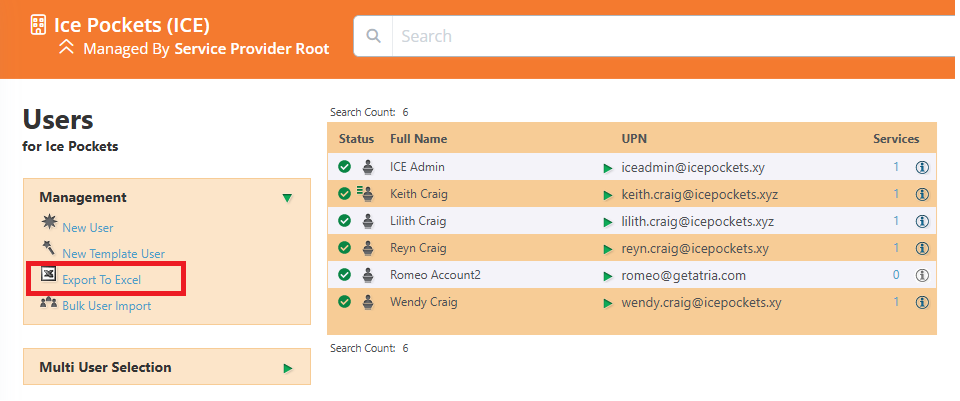
- The file will contain details about all of the users within that Customer.

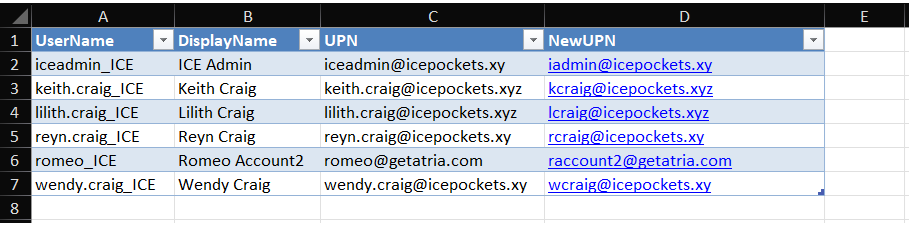
- Modify the file to include a new column named NewUPN containing the new UPN value for each user and save it as a CSV file.
info
Ensure all of the column names are correct, refer to the screenshot below.
Running the Script
- Download the PowerShell script below and place on your Provisioning Server:
-
Open an administrative PowerShell window and navigate to the location where you have placed the script.
-
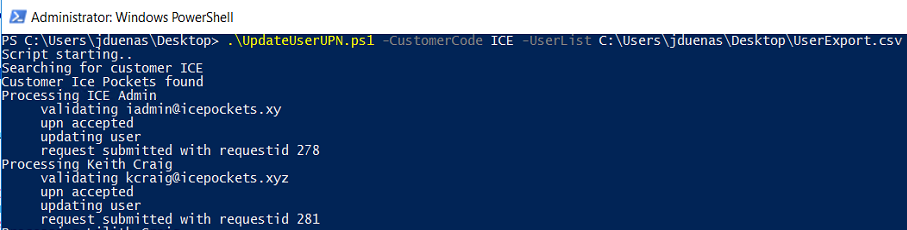
Run the following command to execute the script. Ensure you use the correct values for the given parameters:
> .\UpdateUserUPN.ps1 -Customercode <CustomerCode> -UserList <Path to the excel file>
- CustomerCode - the customer code where users belong to
- UserList - the file path of the excel file containing the list of users with their new upn
Example

- The script will output the result if the UPN change is accepted and sent as a provisioning request:
Notes
- The script can be run multiple times
- It has some validation and error handling


If you have any questions or require any help or assistance, please contact us at support@getatria.com.